Nothing kills a good streaming session faster than IPTV buffering. You’re watching a live match, the striker lines up a shot, and the screen freezes. By the time it catches up, the moment’s gone. Frustrating doesn’t even cover it.
The good news? IPTV buffering is almost always fixable. Most cases come down to one of four causes: slow internet, weak WiFi, ISP throttling, or incorrect app settings. Fix the right one and the problem disappears.
Here are 12 proven fixes, starting with the quickest wins and working toward deeper solutions. Try them in order. Most people solve their IPTV buffering problem within the first three or four steps.
Fix 1 — Test Your Internet Speed
Slow internet is the most common reason for IPTV buffering. Before changing anything else, check what speed you’re actually getting.
You need at least 25 Mbps for smooth HD streaming and 50 Mbps for 4K. Run a test on the same device you’re streaming with, not your phone in another room. Speeds vary between devices and locations in your home.
Use our Internet Speed Test for Streaming to check your connection and get IPTV-specific recommendations based on your results.
If your speed is below 25 Mbps, contact your ISP about upgrading your plan before trying other fixes.
Fix 2 — Switch to Ethernet
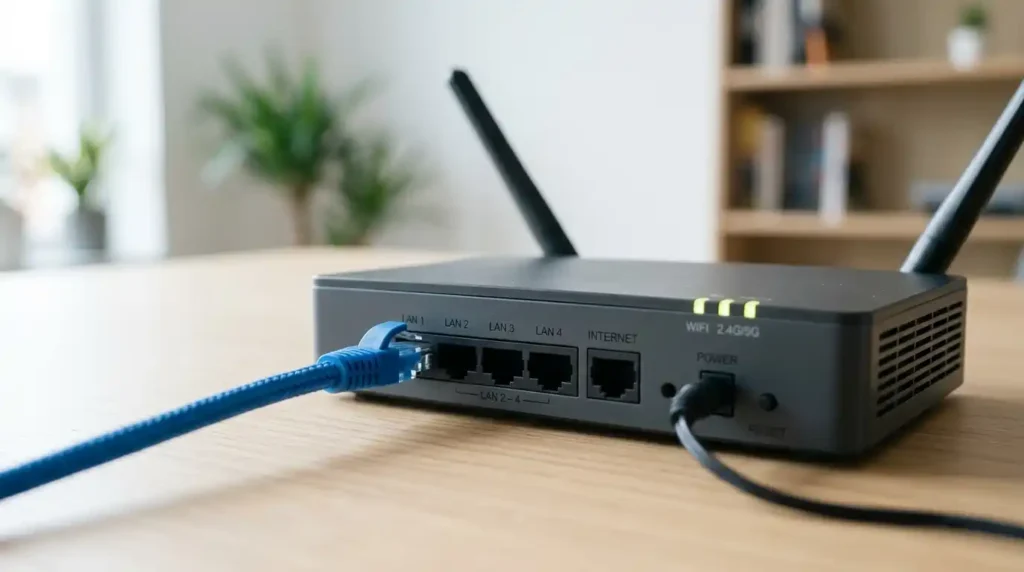
WiFi causes more IPTV buffering than most people realize. Even a fast wireless connection suffers from interference. Walls, microwaves, baby monitors, and neighboring WiFi networks all degrade signal quality.
A wired Ethernet connection eliminates all of that. Plug a cable directly from your router to your streaming device and test the difference. This single change fixes IPTV buffering in roughly 40% of cases.
For Firestick, grab a Micro-USB to Ethernet adapter. Android TV boxes and Smart TVs usually have built-in Ethernet ports. The Fire TV Cube has one built in.
Fix 3 — Restart Everything
Simple but effective. Restart your streaming device, your router, and your modem. In that order.
Unplug your router for 30 seconds, plug it back in, wait for all lights to stabilize (about 2 minutes), then restart your streaming device. This clears temporary memory, refreshes your IP address, and often resolves IPTV buffering that started randomly.
Make this your habit whenever buffering shows up unexpectedly. Nine times out of ten, a full restart solves it.
Fix 4 — Clear Your IPTV App Cache
Every IPTV app stores temporary data that builds up over time. Too much cached data slows performance and triggers IPTV buffering during channel switches and stream loading.
On Firestick: Settings > Applications > Manage Installed Applications > select your IPTV app > Clear Cache > Clear Data.
On Android TV/Box: Settings > Apps > select your IPTV app > Storage > Clear Cache.
Do this every two weeks. It takes 10 seconds and prevents a lot of unnecessary IPTV buffering.
Fix 5 — Change Your DNS Settings
Your ISP’s default DNS servers are often slow and congested. Switching to a faster public DNS improves connection routing and reduces IPTV buffering caused by slow DNS lookups.
Set your DNS to one of these:
Cloudflare: 1.1.1.1 and 1.0.0.1 (fastest DNS resolver globally in 2026, according to DNSPerf speed rankings).
Google: 8.8.8.8 and 8.8.4.4 (reliable and widely supported).
Change this in your router settings for a network-wide fix, or in your streaming device’s WiFi advanced settings for a device-specific change.
Fix 6 — Increase Buffer Size in Your IPTV Player
Most IPTV player apps have a buffer size setting that controls how much content the app preloads before playing. The default is usually too low for unstable connections.
In TiviMate, go to Settings > Playback > Buffer Size and increase it to 3 to 5 seconds. In IPTV Smarters Pro, check the player settings for a similar buffer or cache option.
A larger buffer gives the app more breathing room. Instead of freezing the moment your connection dips, it plays from the preloaded content while the stream catches up. This significantly reduces IPTV buffering during minor speed fluctuations.
Fix 7 — Lower the Stream Quality
Watching in 4K looks amazing, but it demands serious bandwidth. If your connection can’t keep up consistently, IPTV buffering is inevitable.
Drop the quality to 720p or 1080p in your IPTV player settings. The visual difference between 720p and 1080p is barely noticeable on most TVs, and 720p uses roughly 50% less bandwidth than full HD. That’s often enough headroom to eliminate buffering entirely.
You can always switch back to higher quality during off-peak hours when your internet is less congested.
Fix 8 — Check for ISP Throttling
Here’s something most people don’t realize. Many internet providers deliberately slow down streaming traffic during peak evening hours (6 PM to 11 PM). Your speed test might show 100 Mbps, but your actual streaming bandwidth could be throttled to a fraction of that.
Signs of ISP throttling: IPTV buffering happens only in the evening, your speed test shows normal numbers but streams still freeze, and non-streaming activities like web browsing work fine.
Run a check with our ISP Throttling Detector to find out if your provider is limiting your streaming speeds. If throttling is confirmed, a VPN is the fastest solution (see Fix 9).
Fix 9 — Use a VPN to Bypass Throttling
A VPN encrypts your internet traffic so your ISP can’t tell you’re streaming. They can’t throttle what they can’t identify. For many users dealing with evening IPTV buffering, connecting to a VPN eliminates the problem completely.
NordVPN and Surfshark are the most popular choices among IPTV users. Both offer native apps for Firestick, Android TV, and mobile devices. Install the app, connect to a nearby server, then open your IPTV player as usual.
Concerned about VPN speed impact? Our VPN Speed Impact Calculator estimates how much speed you’ll lose based on your connection, so you can decide if the trade-off is worth it. For most users on 50+ Mbps connections, the speed reduction is barely noticeable.
Fix 10 — Switch IPTV Servers
Most IPTV providers run multiple servers across different regions. If one server is overloaded, your streams will buffer regardless of how fast your internet is.
Check your IPTV player or provider’s app for a server selection option. Try switching to a different server, preferably one closer to your physical location. During major sporting events and peak viewing hours, popular servers get hammered. A less crowded server often delivers a smoother stream.
If your provider doesn’t offer server switching, contact their support team. A good provider will either suggest an alternative server or acknowledge if their infrastructure is under heavy load.
Fix 11 — Update Your IPTV App and Device Firmware
Outdated apps and firmware cause compatibility issues that lead to IPTV buffering. Developers regularly release updates that improve streaming performance, fix bugs, and optimize buffer handling.
Check for app updates through the Amazon App Store (for store-installed apps) or download the latest APK through the Downloader app (for side-loaded apps). For Firestick firmware, go to Settings > My Fire TV > About > Check for Updates.
Keep both your IPTV player and your device software current. An outdated app on outdated firmware is a recipe for streaming problems.
Fix 12 — Upgrade Your Streaming Device
If you’ve tried everything above and IPTV buffering persists, your hardware might be the bottleneck. Older devices with limited RAM and slower processors struggle to handle large channel lists, heavy EPG data, and high-bitrate 4K streams.
The Firestick 4K and Firestick 4K Max handle modern IPTV apps comfortably. If you’re using a Firestick Lite, a first-generation Firestick, or a cheap Android box with 1 GB of RAM, upgrading your device could be the fix.
Not sure if your current device is up to the task? Our IPTV Device Compatibility Checker tells you whether your hardware meets the requirements for smooth streaming.
For a complete diagnosis tailored to your specific setup, run our IPTV Buffering Fix Tool to pinpoint the exact cause and get a step-by-step solution.
Frequently Asked Questions About IPTV Buffering
Why does my IPTV buffer only at night?
Peak internet usage happens between 6 PM and 11 PM. Your ISP’s network gets congested during these hours, and some providers actively throttle streaming traffic. Using a VPN or switching to a wired Ethernet connection usually solves evening-only IPTV buffering.
Does a VPN fix IPTV buffering?
It depends on the cause. If your ISP is throttling streaming traffic, yes, a VPN fixes IPTV buffering by hiding the type of traffic from your provider. If the issue is slow internet or a weak WiFi signal, a VPN won’t help because the underlying connection is the problem.
What internet speed stops IPTV buffering?
25 Mbps handles HD streaming without IPTV buffering. 50 Mbps covers 4K content and multiple devices streaming simultaneously. These are real-world minimums, not theoretical numbers.
Is IPTV buffering caused by the provider?
Sometimes. Overloaded or poorly maintained servers cause buffering regardless of your internet speed. If every fix on your end fails, the problem is likely on the provider’s side. Try switching servers within the app, and if that doesn’t help, it may be time to evaluate a different provider.
Can a Firestick cause IPTV buffering?
Yes, older models with limited processing power and RAM can cause IPTV buffering, especially with large channel lists and 4K content. The Firestick 4K or newer models handle IPTV significantly better than first-generation devices.
How often should I clear my IPTV app cache?
Every two weeks is a good habit. Heavy users who stream several hours daily should clear cache weekly. It takes seconds and prevents accumulated data from slowing down app performance.
Stop Buffering, Start Streaming
IPTV buffering is annoying, but it’s rarely permanent. Most problems come down to internet speed, WiFi issues, ISP throttling, or app settings. Work through the fixes above in order, and you’ll likely solve it within the first few steps.
Start with our Internet Speed Test for Streaming to rule out the most common cause. If speed isn’t the issue, our IPTV Buffering Fix Tool walks you through a full diagnosis to find exactly what’s going wrong.
Smooth streaming is closer than you think.